
Why Do Word and Character Counts Differ Between Microsoft Word and Online Tools?
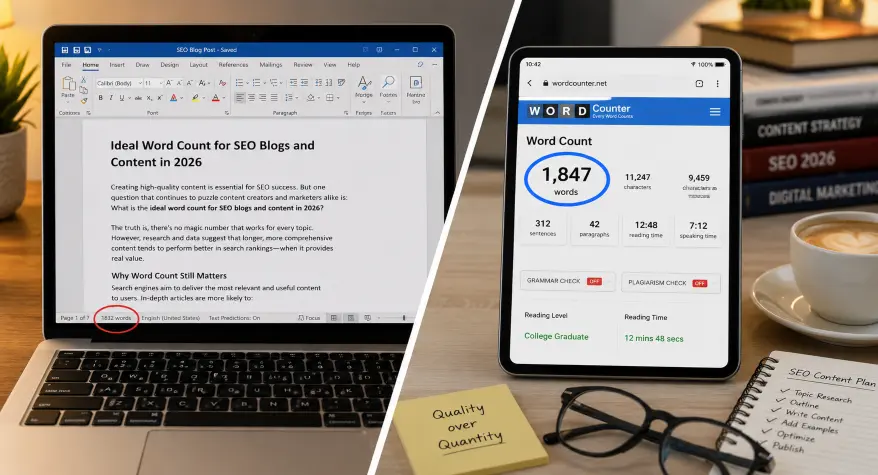
You may get different word or character counts when you paste the same text into Microsoft Word, Google Docs, or an online counting tool. This does not necessarily mean that one tool is wrong. Different applications can use different rules for handling punctuation, hyphenated words, numbers, symbols, and other text elements.
The difference can matter when a document has a strict word limit, character limit, or submission requirement. A student may need to meet an assignment limit, a writer may have a client-defined target, or a publisher may specify how text should be counted.
Understanding why these differences occur makes it easier to compare results and choose the appropriate counting method.
Why Word Counts Can Differ Between Tools
There is no single counting rule that every software application must use for every type of text. Word-processing applications and online counters may handle certain text elements differently.
For example, a counting tool may need to decide how to treat:
- Hyphenated words
- Numbers and dates
- URLs and email addresses
- Punctuation and symbols
- Multiple spaces and line breaks
- Text in headers, footers, or other document elements
As a result, the same text can produce slightly different totals in different applications.
The important point is to identify the counting method required for your assignment, client, publication, or other submission and use that method consistently.
Hyphenated Words: One Word or Two?
Hyphenated words can produce different results because counting tools may use different rules for deciding whether a hyphenated expression represents one word or multiple words.
For example:
- well-known
- state-of-the-art
- long-term
- decision-making
A tool that treats a hyphenated expression as one word will produce a different result from a tool that separates the components.
This becomes more noticeable in documents containing many hyphenated terms. If a submission has a strict word limit, check whether the required counting method has specific rules for hyphenated words.
For the most reliable comparison, use the same application or counting method throughout the project rather than switching between tools
Headers, Footers, Text Boxes, and Word Count
Not all text in a document is necessarily handled the same way by every counting tool. This can be particularly important when a Microsoft Word document contains text in headers, footers, text boxes, footnotes, or other document elements.
The result can therefore depend on the Word version, document structure, and counting method being used.
If a submission has a strict word limit, do not assume that the number shown by one application will match another. Check the instructions for the assignment, publication, client, or organization to determine which content is included in the count.
For important submissions, checking the final document using the required application is safer than relying on a different online counter.
Punctuation and Symbols: Where Things Get Messy
Punctuation and symbols can affect word and character counts differently depending on how a tool processes the text.
Examples include:
- Em dashes and hyphens
- Apostrophes and quotation marks
- Slashes
- Parentheses
- Symbols such as
%,$, and+ - Special or Unicode characters
For word counts, the main question is often whether punctuation separates two tokens or remains part of the same token.
Character counts have a different issue: whether spaces are included. For example, a tool may report both:
- Characters with spaces
- Characters without spaces
These values can differ significantly, especially in longer text. When a platform specifies a character limit, check whether spaces are included before comparing your result with another tool.
Numbers, Dates, and URLs
Numbers, dates, and URLs can also produce different results because counting tools may process them differently.
For example:
- 2026 may be treated as a single word-like token.
- 10:15 contains punctuation within the expression.
- 25.5% combines numbers and symbols.
- https://example.com contains letters, punctuation, and special characters.
The exact result depends on the counting rules used by the application.
If your document contains many URLs, numerical values, or technical expressions, compare the result using the same tool that will be used to verify the final document.
If you are analyzing how frequently individual words appear in a document rather than measuring its total length, a Word Frequency Counter is more appropriate.
Whitespace and Tokenization
At a technical level, word counting involves identifying separate units of text, often called tokens. Different applications can use different rules when determining where one token ends and another begins.
Whitespace is one important factor. Text can contain:
- Regular spaces
- Multiple consecutive spaces
- Tabs
- Line breaks
- Non-breaking spaces
- Other Unicode whitespace characters
Most ordinary documents will not be affected significantly, but unusual formatting or text copied from other sources can produce differences.
This is one reason why the word count can change after text is copied from a PDF, website, email, or formatted document into another application.
For character counts, the distinction between visible characters and spaces is particularly important. When comparing two character counts, first check whether both tools are counting spaces using the same rule.
If you need to compare character totals, you can use our Character Counter to check counts with and without spaces
Which Word Count Should You Trust?
The most appropriate word count is usually the one produced by the tool or method specified by the person or organization receiving the document.
For example:
- If your university specifies Microsoft Word, check the final document in Word.
- If a client specifies a particular online counter, use that counter.
- If an editor uses Google Docs, confirm how they expect the word count to be measured.
For ordinary writing, a small difference between tools may not matter. For documents with strict limits, however, the counting method should be agreed upon before the final submission.
The safest approach is to use the same counting method throughout the project and check the final version using the required application.
For a quick general-purpose check, you can also use our Word Counter.
How to Avoid Word Count Mismatches
A few simple steps can reduce differences between word-count tools:
- Confirm the required tool: Check whether the recipient specifies Word, Google Docs, or another counting method.
- Use one tool consistently: Avoid switching between different counters throughout the project.
- Check the final version: Count the document after all editing is complete.
- Watch hyphenated terms: Be aware that different tools may treat them differently.
- Check character-count settings: Confirm whether spaces are included when a character limit applies.
- Be careful with copied text: Content copied from PDFs, websites, and formatted documents can contain unusual spaces or characters.
For strict submissions, follow the counting instructions provided by the recipient rather than assuming that every tool will produce the same result.
Summary
Different word and character counts do not necessarily mean that one tool is incorrect. Microsoft Word, Google Docs, and online counters can process elements such as hyphenated words, punctuation, numbers, URLs, whitespace, and document components differently.
If an exact limit matters, identify the counting method required by the recipient and use that same method when checking the final document. For general writing, small differences are usually less important than using a consistent counting method throughout the project.
Frequently Asked Questions
1. Why does Microsoft Word show a different word count from online tools?
Different applications can use different rules for handling hyphenated words, punctuation, numbers, URLs, whitespace, and other text elements. Document structure can also affect the result. A small difference does not necessarily mean that either tool is incorrect.
2. Does Microsoft Word count hyphenated words as one or two?
The treatment of hyphenated expressions can depend on the application and counting method. Because different tools may process hyphens differently, use the counting method specified for your assignment, publication, or client when the exact total matters.
3. Why does my word count change when I paste text into another tool?
Copied text can contain different types of whitespace, punctuation, or special characters. The receiving application may process these elements differently, which can change the total. Using the same counting tool throughout a project can reduce these differences.
4. Can headers and text boxes affect a Word word count?
They can, depending on the Word version, document structure, and how the word count is calculated. If a document has a strict word limit, check the requirements for what content should be included and verify the final document using the required application.
5. Why are my character counts different between Word and an online tool?
One common reason is that the tools use different settings for spaces. Check whether each result represents characters with spaces or without spaces. Other differences can also result from how special characters and punctuation are handled.
6. How can I get the same word count as my editor?
Ask your editor which application or counting method they use. Then check your document using the same method, preferably after all editing is complete. This is more reliable than trying to make different counting tools produce identical results.