
How to Auto Format Numbers in Google Sheets (Currency, Percentages, and Large Values)
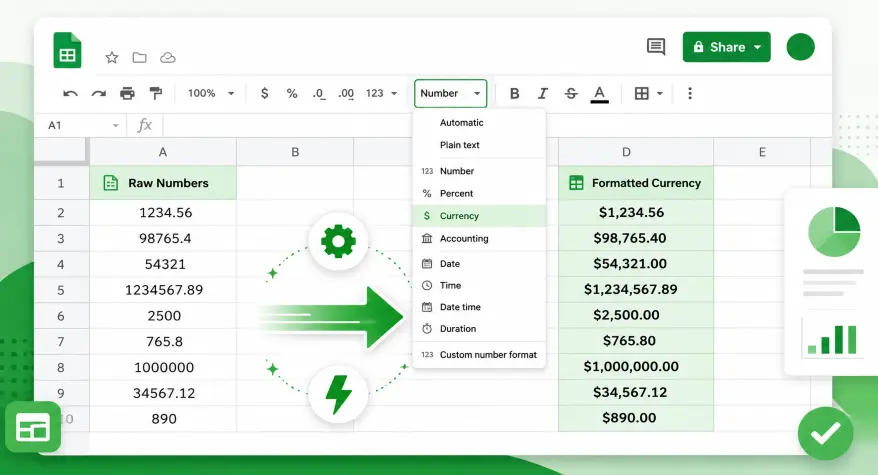
Every spreadsheet has that one problem: you paste in a column of numbers, and Google Sheets does something unexpected. Prices show up without currency symbols. Large values lose their commas. Percentages appear as plain decimals. And no matter how many times you fix it, the next data import breaks it all over again.
Manual formatting is not just tedious — it’s unreliable. One slip in a shared file and your invoice total looks like a raw number instead of a dollar amount. For teams handling live data, financial reports, or inventory sheets, that kind of inconsistency creates real errors.
The good news is that Google Sheets has multiple ways to handle this automatically. From built-in format rules to formula-based solutions and even lightweight scripts, you can set it up once and let it run.
A Quick Example
Suppose cell A2 contains the number:
1500000
Depending on how you want the value to appear, Google Sheets can display it in several ways:
| Purpose | Display |
|---|---|
| Standard number | 1,500,000 |
| Currency | $1,500,000.00 |
| Percentage | 25% |
| Indian-style grouping | 15,00,000 |
The important point is that formatting can change how a value looks without necessarily changing the underlying number.
In this guide, you’ll learn how to use Google Sheets’ built-in formatting, custom number formats, the TEXT() function, ARRAYFORMULA, conditional formatting, and Apps Script to control how numbers are displayed.
Why Manual Number Formatting Fails at Scale
When you’re working with a small, static table, formatting by hand is manageable. But the moment your sheet pulls in live data from a form, an API, or a connected database, manual formatting falls apart fast.
Here’s what typically goes wrong:
- Imported numbers lose currency symbols and appear as plain integers
- Percentages come in as decimals (0.25 instead of 25%)
- Large numbers like 1500000 display without commas, making them hard to read
- Formulas referencing formatted cells return errors when the format changes
These aren’t edge cases. They’re everyday frustrations for anyone managing a real working spreadsheet.
Built-In Google Sheets Number Formatting Options
Before jumping to advanced solutions, it’s worth knowing what Google Sheets gives you out of the box.
Go to Format → Number in the top menu. You’ll see options like:
- Currency — Adds a dollar sign and two decimal places automatically
- Percent — Multiplies the value by 100 and adds a % symbol
- Scientific — Converts large numbers to exponential notation
- Accounting — Similar to currency, but aligns symbols and decimals cleanly
These work well for static data. Select your cells, choose a format, and done. But they don’t apply automatically when new data comes in — that’s where most people get stuck.
Example: Format a Large Number
Suppose cell A2 contains:
1500000
Select the cell and go to:
Format → Number → Number
Google Sheets can display the value as:
1,500,000
The underlying value remains 1500000. You have changed its presentation, not replaced the value with a different number.
For example:
| Original value | Number format | Display |
|---|---|---|
| 1500000 | Number | 1,500,000 |
| 1500000 | Currency | $1,500,000.00 |
| 0.25 | Percent | 25% |
| 1500000 | Custom Indian grouping | 15,00,000 |
The exact currency symbol and decimal display can depend on the spreadsheet’s locale and selected format.
Using Custom Number Formats in Google Sheets
Google Sheets custom number format rules give you precise control over how values appear without changing the underlying data. Go to Format → Number → Custom number format and enter your own format code.
Here are some of the best custom number format for decimals in Google Sheets and other values you’ll use regularly:
| Format Code | Input Value | Formatted Result |
|---|---|---|
$#,##0.00 | 1500 | $1,500.00 |
0.00% | 0.25 | 25.00% |
#,##0 | 1000000 | 1,000,000 |
0.000 | 3.14159 | 3.142 |
"USD "#,##0.00 | 2500 | USD 2,500.00 |
These format codes follow a standard pattern. The # symbol represents an optional digit, 0 forces a digit to show even if it’s zero, and commas inside the code add thousand separators.
One important note: custom formats affect display only. The actual cell value stays the same, so your formulas keep working correctly.
If you need to convert numbers to readable text outside of Sheets — for documents, invoices, or formal reports — a dedicated tool like the number to words converter handles that conversion instantly without any formula work.
Practical Custom Number Format Examples
Custom number formats are useful when the built-in options do not produce exactly the appearance you want.
To create one, select your cells and go to:
Format → Number → Custom number format
Here are some useful examples.
Add thousands separators
Use:
#,##0
Example:
1500000 → 1,500,000
Display two decimal places
Use:
#,##0.00
Example:
1500000 → 1,500,000.00
Add a dollar sign
Use:
$#,##0.00
Example:
1500000 → $1,500,000.00
Add text after a number
Use:
#,##0 "units"
Example:
1500 → 1,500 units
Show positive and negative values differently
You can use separate sections for positive and negative numbers:
#,##0;(#,##0)
Example:
1500 → 1,500
-1500 → (1,500)
Google Sheets supports multiple sections in a custom format, with the sections separated by semicolons.
Important: Custom number formatting changes the displayed appearance of a value. It does not turn the underlying numeric value into ordinary text.
How to Auto Format Numbers in Google Sheets
To format numbers as currency in Google Sheets automatically or apply any other number style when data enters your sheet, you have two main approaches: range-based pre-formatting and formula-driven formatting.
Steps to apply currency formatting automatically:
- Select the entire column where data will be entered (e.g., Column B)
- Go to Format → Number → Currency
- Any value entered in that column will now inherit the format automatically
- For imported data, reapply by selecting the range and choosing your format
Pre-formatting a column is the simplest solution. Auto convert numbers to currency in Sheets this way, and Google Sheets will apply your chosen format to any value typed or pasted into those cells — as long as the incoming data doesn’t carry its own conflicting format.
Using the TEXT() Function for Formula-Based Formatting
When you need to control how a number looks inside a formula or combine it with text, the TEXT() function is your best option. This is one of the most practical answers to Google Sheets number formatting automatically without relying on manual steps.
The syntax is simple:=TEXT(value, format_code)
For example:
=TEXT(A2,"$#,##0.00")returns “$1,500.00”=TEXT(A2,"0.00%")returns “25.00%.”=TEXT(A2,"#,##0")returns “1,000,000”
The key trade-off: TEXT() converts numbers to text strings, so you can’t do math on the result directly. Use it for display purposes — labels, combined sentences, report cells — not for values you need to sum.
Number Formatting vs. the TEXT() Function
One of the most important differences to understand in Google Sheets is the difference between number formatting and the TEXT() function.
Number formatting
Suppose A2 contains:
1500000
If you apply the custom number format:
#,##0
the cell displays:
1,500,000
But the cell still contains a numeric value. You can continue using it in mathematical calculations.
For example:
=A2*2
returns:
3000000
Using TEXT()
Now consider:
=TEXT(A2,"#,##0")
The result displayed is:
1,500,000
But TEXT() returns a text representation of the number.
This distinction matters when you need to perform further calculations or use the result in another formula.
Another example
If A2 contains:
1500000
you can use:
=TEXT(A2,"$#,##0.00")
Result:
$1,500,000.00
This is useful when you need a formatted value as part of a sentence, label, report, or other text output.
For example:
="Total sales: "&TEXT(A2,"$#,##0.00")
produces:
Total sales: $1,500,000.00
Google’s documentation defines the TEXT() function as converting a number to text according to a specified format.
When Should You Use Number Formatting or TEXT()?
| Requirement | Number Format | TEXT() |
|---|---|---|
| Change how a number looks | ✓ | ✓ |
| Keep the cell as a numeric value | ✓ | — |
| Continue mathematical calculations | ✓ | Not directly with the returned text |
| Add formatted numbers inside a sentence | — | ✓ |
| Create a formatted text label | — | ✓ |
| Apply formatting to an existing range | ✓ | — |
| Generate formatted text from a formula | — | ✓ |
Simple rule
Use number formatting when you want the value to remain a number but look different.
Use TEXT() when you specifically need a formatted text result.
This distinction can prevent unexpected results in formulas and reports.
ARRAYFORMULA for Automatic Number Formatting at Scale
If you want to know how to automatically format large numbers in Google Sheets across an entire column as new rows are added, ARRAYFORMULA combined with TEXT() is a powerful approach.
=ARRAYFORMULA(IF(B2:B<>"",TEXT(B2:B,"$#,##0.00"),""))
What this does:
- Watches the entire B column for new entries
- Applies dollar formatting to every non-empty cell automatically
- Leaves blank cells untouched
- Updates instantly when new data is added
This approach works especially well for sheets connected to Google Forms, where new rows are added continuously, and you need consistent output formatting without touching each row manually.
For larger formatting operations — especially when you need a clean, readable number output for external use — the number formatter online tool lets you format and preview numbers quickly without building out formulas.
Conditional Formatting Based on Number Values
Conditional formatting in Google Sheets is typically used for color-coding, but it can also help you visually separate number ranges automatically.
Go to Format → Conditional formatting, then set rules like:
- If the value is greater than 1,000,000 → apply bold red text
- If value is less than 0 → highlight in yellow (to flag negative figures)
- If value equals 0 → grey out the cell
This doesn’t change the number format itself, but it creates automatic visual formatting that updates as your data changes — useful for budget trackers, sales sheets, and KPI dashboards.
Google Sheets Number Formatting Automatically: Avoiding Common Problems
Even with all the right settings, a few things can break your formatting rules.
Problem 1: Imported data overrides your format
When you paste data from Excel or import a CSV, the incoming format sometimes overrides your column settings. Fix: After importing, select the affected range and reapply your format via Format → Number.
Problem 2: TEXT() results break SUM formulas
If you’ve used TEXT() to format a column, SUM won’t work on those cells because they’re now text strings. Keep your raw numbers in one column and use TEXT() only in a separate display column.
Problem 3: Google Docs number formatting automatic issues
This happens when numbers are preceded by a space or apostrophe, or when imported data includes invisible characters. Whether you’re working in Sheets or dealing with Google Docs number formatting automatic quirks in tables, check with =ISNUMBER(A2) — If it returns FALSE, your value is stored as text. Use =VALUE(A2) it to convert it back.
Problem 4: Custom formats not sticking after paste
Use Paste Special (Ctrl+Shift+V) and choose “Values only” to paste without carrying over the source formatting.
How to Stop Google Sheets from Changing Number Format
This is one of the most searched issues related to how to prevent Google Sheets from changing number format — and the fix is simpler than most people expect.
When Sheets auto-converts your numbers (turning dates into numbers, or decimals into fractions), it’s usually because of the cell format set to “Automatic.” Change it explicitly:
- Select your cells
- Go to Format → Number
- Choose your specific format (not “Automatic”)
- Lock the format by protecting the range if it’s shared: Data → Protect sheets and ranges
For numbers that should never be interpreted as dates or other types, you may also want to understand how to prevent Google Sheets from changing number format at the paste level — set the column format to Plain text before entering data. Just keep in mind that math won’t work on text-formatted cells.
Automating Number Formatting with Apps Script
For teams who need true automation — formatting that applies the moment data is entered, without any manual steps — Google Apps Script is the answer. This is the most advanced way to handle Google Sheets number formatting automatically for live or collaborative sheets.
Here’s a simple script that auto-formats Column B as currency whenever a new value is entered:
function onEdit(e) {
  var sheet = e.source.getActiveSheet();
  var range = e.range;
  if (range.getColumn() == 2) {
    range.setNumberFormat("$#,##0.00");
  }
}
To use it:
- Open your sheet → Extensions → Apps Script
- Paste the script and save
- It runs automatically every time Column B is edited
You can adapt this for any column, any format. Swap "$#,##0.00" with "0.00%" for percentages or "#,##0" for plain large-number formatting.
Formatting Numbers in Google Docs
Google Docs number formatting automatic behavior is quite different from Sheets. Google Docs doesn’t have the same number formatting power, but there are a few things worth knowing if you’re working with numbers inside document tables.
Inside a Doc’s table, numbers display exactly as typed. There’s no auto-format. Your options are:
- Type the formatted value manually (e.g., type “$1,500” instead of “1500”)
- Copy formatted values from a Sheets cell into your Docs table
- Use a script to auto-populate Docs from Sheets with pre-formatted values
For documents where number presentation matters — contracts, financial summaries, formal letters — it’s often more reliable to write out numbers in words rather than relying on formatting. That’s where tools like a number-to-words converter save time, especially when you need to express values like “one million five hundred thousand dollars” in full text form.
Frequently Asked Questions
1. How do I automatically format numbers in Google Sheets?
The simplest method is to pre-format your columns before entering data. Select the column, go to Format → Number, and choose your format. Any value entered in that column inherits it automatically. For dynamic data, combine ARRAYFORMULA with TEXT() to apply Google Sheets number formatting automatically as new rows are added. This handles continuous input without any manual steps.
2. Can Google Sheets apply formatting automatically on input?
Yes, in two ways. First, pre-formatting a column means any value you type into it will take on that format. Second, using an Apps Script with the onEdit trigger applies formatting programmatically the moment a cell is changed. The script approach is more reliable for shared sheets or sheets connected to external data sources when you need to format numbers as currency in Google Sheets automatically.
3. What is a custom number format in Google Sheets?
A Google Sheets custom number format rule is a display instruction you define manually using format codes. It controls how a number looks in the cell — adding currency symbols, decimal places, commas, or text — without changing the underlying value. You access it through Format → Number → Custom number format. Common codes include $#,##0.00 for currency and 0.00% for percentages.
4. How do I stop Sheets from changing number format?
Set your column format explicitly instead of leaving it on “Automatic.” Go to Format → Number and pick your format. For columns where Sheets keeps interpreting numbers as dates or other types, set the format to Plain text before data entry. You can also protect the range via Data → Protect sheets and ranges to prevent accidental format changes in shared files — one of the most reliable ways to stop Sheets from overriding your settings.
5. Can I use formulas to format numbers in Google Sheets?
Yes. The TEXT() function lets you apply number formatting directly inside a formula: =TEXT(A2,"$#,##0.00"). This is especially useful when you need to auto convert numbers to currency in Sheets within a combined text string or report cell. For entire columns, wrap it in ARRAYFORMULA to apply automatically as rows are added. Keep in mind that TEXT() returns a text string, not a number, so use it in display cells only.