
How to Use Excel VBA to Convert Numbers to Words for Invoices
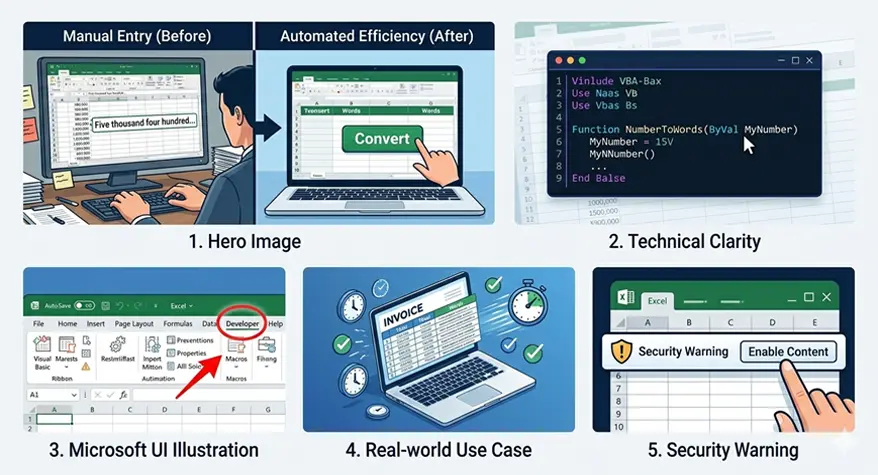
Converting invoice totals into words manually becomes time-consuming when an Excel workbook contains many invoices. A VBA custom function can convert a numeric amount into written words directly from a worksheet cell.
For example, if cell H28 contains 125000, a VBA function can return:
One Hundred Twenty-Five Thousand
Excel does not provide a built-in SPELLNUMBER worksheet function, so users who need this functionality can create a custom VBA function and use it like a normal Excel formula.
Why Manual Number-to-Words Entry Is a Bad Habit
Typing invoice amounts in words manually creates unnecessary opportunities for errors, especially when processing many invoices.
For example, if an invoice shows 48,950.75 but the written amount does not include the decimal portion, the two values do not match.
A VBA function avoids retyping the amount. The user enters or calculates the numeric total once, and the written amount is generated from that value.
What a VBA Function Does
A VBA custom function can read a number from an Excel cell, convert the value into words, and return the result to another cell.
For example:
=NumberToWords(H28)If H28 contains:
125000The result can be:
One Hundred Twenty-Five ThousandThe function can then be combined with currency text when required:
=NumberToWords(H28)&" Rupees Only"Use a Consistent Invoice Layout
Before adding VBA, identify the cells that contain the invoice total and the amount-in-words output.
For example:
| Field | Cell |
|---|---|
| Grand Total | H28 |
| Currency | B12 |
| Amount in Words | B31 |
The VBA formula can then reference the grand total consistently:
=NumberToWords(H28)If your invoice template changes frequently, update the cell reference in the formula rather than changing the VBA code.
VBA Code for Number-to-Words Conversion
The following VBA code converts whole numbers into English words and supports values up to 999,999,999.
Option Explicit

Public Function NumberToWords(ByVal Number As Double) As String

    Dim WholePart As Long
    Dim Result As String

    If Number < 0 Then
        NumberToWords = "Minus " & NumberToWords(Abs(Number))
        Exit Function
    End If

    WholePart = Int(Number)

    If WholePart = 0 Then
        NumberToWords = "Zero"
        Exit Function
    End If

    Result = ConvertWholeNumber(WholePart)

    NumberToWords = Trim(Result)

End Function

Private Function ConvertWholeNumber(ByVal Number As Long) As String

    Dim Result As String

    If Number >= 1000000 Then
        Result = Result & ConvertWholeNumber(Int(Number / 1000000)) & " Million "
        Number = Number Mod 1000000
    End If

    If Number >= 1000 Then
        Result = Result & ConvertWholeNumber(Int(Number / 1000)) & " Thousand "
        Number = Number Mod 1000
    End If

    If Number >= 100 Then
        Result = Result & ConvertWholeNumber(Int(Number / 100)) & " Hundred "
        Number = Number Mod 100
    End If

    If Number > 0 Then
        Result = Result & ConvertUnder100(Number)
    End If

    ConvertWholeNumber = Trim(Result)

End Function

Private Function ConvertUnder100(ByVal Number As Long) As String

    Dim Ones As Variant
    Dim Tens As Variant

    Ones = Array("", "One", "Two", "Three", "Four", "Five", _
                 "Six", "Seven", "Eight", "Nine", "Ten", _
                 "Eleven", "Twelve", "Thirteen", "Fourteen", _
                 "Fifteen", "Sixteen", "Seventeen", "Eighteen", _
                 "Nineteen")

    Tens = Array("", "", "Twenty", "Thirty", "Forty", _
                 "Fifty", "Sixty", "Seventy", "Eighty", "Ninety")

    If Number < 20 Then
        ConvertUnder100 = Ones(Number)
    Else
        ConvertUnder100 = Tens(Int(Number / 10))

        If Number Mod 10 > 0 Then
            ConvertUnder100 = ConvertUnder100 & "-" & Ones(Number Mod 10)
        End If
    End If

End Function
Example
If cell H28 contains:
45920Enter this formula in the amount-in-words cell:
=NumberToWords(H28)The result will be:
Forty-Five Thousand Nine Hundred Twenty
How to Add the VBA Function to Excel
Follow these steps:
- Open your Excel invoice workbook.
- Press Alt + F11 to open the VBA Editor.
- Select Insert → Module.
- Paste the complete VBA code into the module.
- Close the VBA Editor.
- Save the workbook as Excel Macro-Enabled Workbook (*.xlsm).
- Return to the worksheet.
- Enter the custom function in the required cell.
For example:
=NumberToWords(H28)For a currency label:
=NumberToWords(H28)&" Rupees Only"When the value in H28 changes, the written amount updates automatically.
Currency and Decimal Handling
The basic function above converts the whole-number portion. For invoices, you may also need to convert the decimal portion into cents, paise, fils, or another currency subunit.
For example:
| Amount | Currency | Written Example |
|---|---|---|
| 45,920.75 | USD | Forty-Five Thousand Nine Hundred Twenty Dollars and Seventy-Five Cents Only |
| 45,920.75 | INR | Forty-Five Thousand Nine Hundred Twenty Rupees and Seventy-Five Paise Only |
The decimal portion can be extracted separately in VBA:
Dim DecimalPart As Long

DecimalPart = Round((Number - Int(Number)) * 100, 0)
You can then pass DecimalPart to the same number-to-words function and attach the appropriate currency subunit.
For example:
=NumberToWords(A2)&" Rupees Only"The currency names and subunits should match the currency used by your invoice.
Test the Function Before Using It
Before using the VBA function in live invoices, test several values:
| Input | Expected Output |
|---|---|
| 0 | Zero |
| 25 | Twenty-Five |
| 100 | One Hundred |
| 1,250 | One Thousand Two Hundred Fifty |
| 45,920 | Forty-Five Thousand Nine Hundred Twenty |
| 1,500,000 | One Million Five Hundred Thousand |
| -250 | Minus Two Hundred Fifty |
Testing small, large, and negative values can help identify problems before the workbook is used for actual invoices.
Common VBA Errors and Checks
If the function does not work as expected, check the following:
- #NAME?: Make sure the VBA code is in a standard Module, and the formula uses the correct function name.
- Macros are disabled: Enable macros for a workbook you trust.
- Code disappears after saving: Confirm that the workbook was saved as
.xlsm, not.xlsx. - Incorrect result: Check that the referenced cell contains a numeric value.
- Decimal amount is missing: The basic function only converts the whole-number portion. Additional decimal logic is required for currency amounts.
Keep a backup copy of the original workbook before modifying VBA code.
Macro Security Warning
Excel may display a security warning when a workbook contains macros. Only enable macros in workbooks and VBA code that you trust.
If macros are blocked, the NumberToWords function will not run until VBA execution is allowed by your Excel security settings.
When to Use an Online Converter Instead
VBA is useful when the same conversion is needed repeatedly inside an Excel workbook.
For occasional conversions, you can enter the value into an online number-to-words converter, verify the result, and copy it into your document or invoice. If you also need to add thousands separators or standardize numeric formatting, a number formatter can help.
For occasional conversions, you can enter the value into an online converter, verify the result, and copy it into your document or invoice.
Final Takeaway
Excel does not include a built-in SPELLNUMBER worksheet function, but a VBA custom function can convert numeric values into words directly inside an invoice workbook.
For a reliable workflow:
- Add the VBA function to a standard Module.
- Save the workbook as
.xlsm. - Use
=NumberToWords(cell)in the worksheet. - Test whole numbers, large values, negative values, and currency decimals.
- Only enable macros in workbooks you trust.
Frequently Asked Questions
1. Does Excel have a built-in SPELLNUMBER function?
No. Excel does not provide a standard SPELLNUMBER worksheet function. A custom VBA function can be created to convert numbers into words.
2. How do I use a VBA number-to-words function in Excel?
Open the VBA Editor with Alt + F11, insert a standard Module, paste the VBA code, save the workbook as .xlsm, and then use the custom function in a worksheet, such as =NumberToWords(A2).
3. Why do I need to save the workbook as XLSM?
The .xlsm format supports VBA macros. Saving a macro-enabled workbook as .xlsx can remove the VBA code.
4. Can the VBA function convert decimal currency amounts?
The basic function can convert the whole-number portion. To convert amounts such as 45920.75 into dollars and cents or rupees and paise, additional decimal and currency logic is required.
5. Why does Excel show #NAME? after I enter the function?
A #NAME? error can occur if Excel cannot find the custom VBA function. Check that the code is in a standard VBA Module, the function name is correct, and macros are enabled.